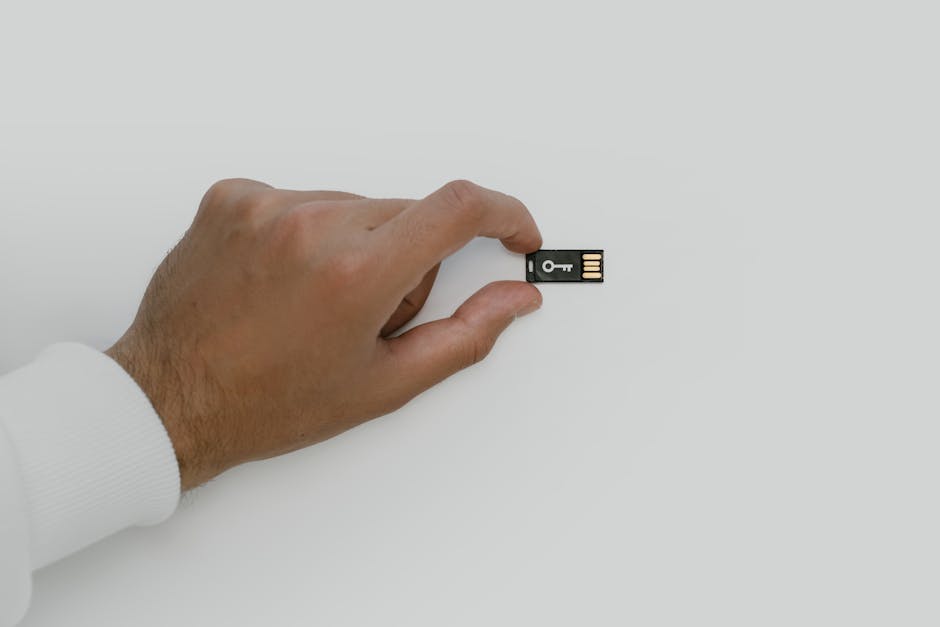
A friend called me last October. His laptop had died — motherboard failure, unceremonious, no warning. He had used a local password manager for three years. His vault was on that laptop's hard drive. He had no backup.
"Can you recover it?" he asked.
No. I couldn't. The drive was fine, technically, but the cost of professional data recovery started at $800 with no guarantee. He spent two weeks resetting passwords for every account he could remember, and lost access to several he couldn't.
Your password vault is the most important file on your computer. Treat it that way.
Why Vault Backups Are Different
Backing up a password vault isn't like backing up your photos. Three things make it different:
The vault is encrypted. A backup of the encrypted vault is useless without the master password. This means your backup doesn't need to be stored in a vault itself — the encryption is already handled. But it also means if you forget the master password, having fifty backups won't help.
The vault changes constantly. Every time you add or update a password, the vault file changes. A backup from last month is missing every credential you've added since. You need a backup strategy that keeps up, not a one-time copy.
The vault is irreplaceable. If you lose a photo, you might find it again. If you lose your vault, you lose the keys to every account you own. The recovery process for a lost vault is measured in weeks, not hours.
The 3-2-1 Rule, Adapted for Vaults
The standard backup advice is the 3-2-1 rule: three copies, on two different media, with one offsite. This works for password vaults with some modifications.
**Three copies.** Your working vault on your primary device. A local backup on external storage. An offsite backup in a location you control.
**Two different media.** Don't keep all copies on the same type of storage. If your laptop SSD dies and your backup is on a USB stick plugged into the same laptop, you've lost both. Use different devices — a USB stick, an external hard drive, a different computer.
**One offsite.** If your house burns down or gets burgled, a USB stick in your desk drawer doesn't help. An offsite backup means a copy stored somewhere else — a safety deposit box, a trusted family member's house, or an encrypted file in cloud storage you control.
The modification for password vaults: because the vault is already encrypted, you don't need to add another layer of encryption to your backups. The vault's own encryption is sufficient, assuming you're using a tool with AES-256 and strong key derivation.
How to Export Your Vault
Most password managers offer an export function. The exact steps vary, but the principle is the same: you provide your master password, the tool decrypts the vault, and writes it to a file.
Here's the critical part: **pay attention to the export format.**
Encrypted export: The vault is exported as an encrypted file that requires your master password to open. This is the safest option. The exported file is as secure as the vault itself.
Plain text export: The vault is exported as a CSV or JSON file with all passwords in readable text. This is convenient for importing into another tool, but the file is completely unprotected. Anyone who can open the file can read every password. If you must use plain text export, delete the file immediately after importing.
Some tools offer both. Always choose encrypted export unless you're actively migrating and need the plain text for a one-time import.
Transferring Passwords Between Devices
The most common reason people export their vault is to move it to a new device. Here's how to do it safely:
1. Export your vault in encrypted format from the old device. 2. Transfer the file to the new device. For maximum security, use a USB stick rather than email or cloud storage. For convenience, an encrypted file in your own cloud storage is acceptable. 3. Install the password manager on the new device. 4. Import the vault file. You'll need your master password to decrypt it. 5. Verify that all entries transferred correctly. Check a few passwords manually — especially important accounts like email and banking. 6. Delete the export file from the transfer medium. If you used a USB stick, wipe it. If you used cloud storage, delete the file.
If you're switching password managers entirely — say from a cloud-based tool to an offline password manager — the process is similar, but you'll need to use a common format. Most password managers can import and export CSV or JSON. Use the plain text format for the transfer, but handle the file carefully: create it, transfer it, import it, and delete it in one session. Don't leave a plain text export sitting on your desktop.
Backup Automation
Manual backups fail because people forget to do them. If you have to remember to export your vault every week, you won't. Set up automation.
For offline password managers, the simplest automation is a script that copies the vault file to a backup location on a schedule. On macOS, a launchd job or cron job that copies the vault to an external drive every night. On Windows, Task Scheduler does the same thing. The vault file is already encrypted, so the copy is safe as long as the storage medium is physically secure.
For cloud-based managers, check whether the tool offers automatic encrypted backups to a location you specify. Some do. If yours doesn't, you'll need to export manually on a schedule — set a recurring calendar reminder and treat it as non-negotiable.
Testing Your Backups
An untested backup is a hope, not a backup.
Every few months, try restoring your vault from a backup. Open the backup file in your password manager, enter your master password, and confirm that the vault opens and your entries are there. If you can't restore from a backup during a calm Sunday afternoon, you won't be able to restore from it during a crisis.
This is the step everyone skips. Don't. The friend I mentioned at the start of this article thought his vault was safe because his laptop "seemed fine." He never tested a recovery. When the laptop died, he discovered he had nothing to recover from.
What Not to Do
A few things that seem reasonable but aren't:
Don't email your vault to yourself. Email is not encrypted by default. Even with encryption, your email provider can access the content. A vault file in your inbox is a liability.
Don't store your master password and your vault backup in the same location. If someone finds both, they have everything. Write your master password down and store it separately — a locked drawer at home, a safe, or a password book that isn't labeled "passwords."
Don't rely on a single backup. Drives fail. USB sticks corrupt. Cloud storage accounts get locked. Redundancy is the entire point.
Don't use plain text exports for long-term storage. If you need to export as plain text for a migration, do it, use it, and delete it. A plain text file of all your passwords is the most dangerous file you can create.
Your vault is your digital identity. Back it up like it matters, because it does.


